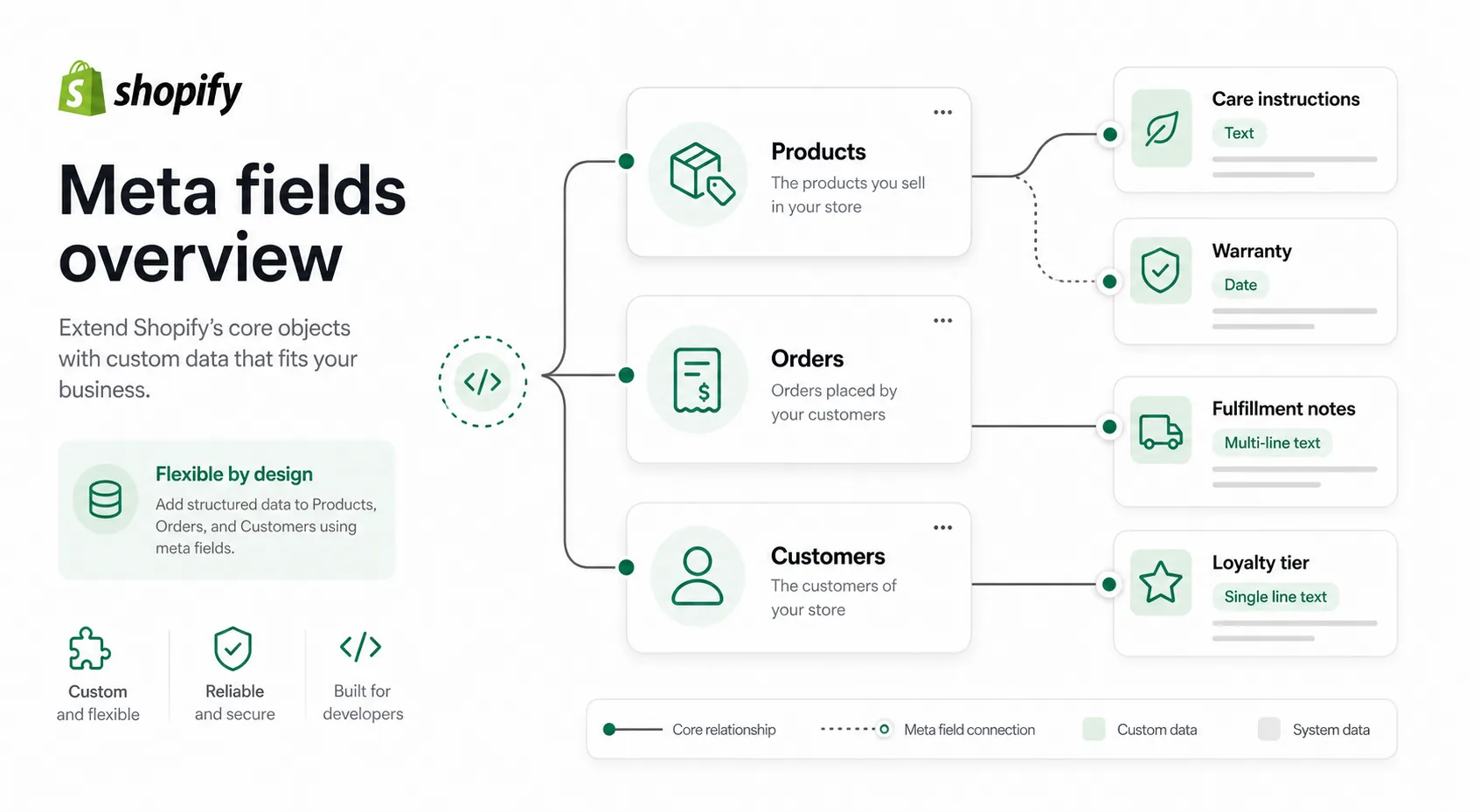
If your product pages need care instructions, materials, size charts, warranty notes, or compatibility details, meta fields let you add that information in a structured way instead of forcing everything into the main description.
You can attach custom data to products, variants, customers, orders, and other Shopify resources. If you are improving visibility as well as structure, read our Shopify SEO Guide. For stronger product copy, use our Shopify Product Description Template or try the Product Description Generator.
What Are Shopify Meta Fields?
Shopify meta fields are custom data fields added to specific Shopify resources. Each field typically has a namespace, a key, a value, and a data type. That makes the information easier to manage than unstructured text pasted into descriptions or notes.
A clothing store might create a product field for care instructions. A furniture store might use one for dimensions. A loyalty program might use a customer field for tier level, while an operations team might use an order field for handling notes.
The core idea
Meta fields extend resources such as products, customers, and orders with custom data that your team can maintain and your theme can display.
Why Shopify Meta Fields Matter
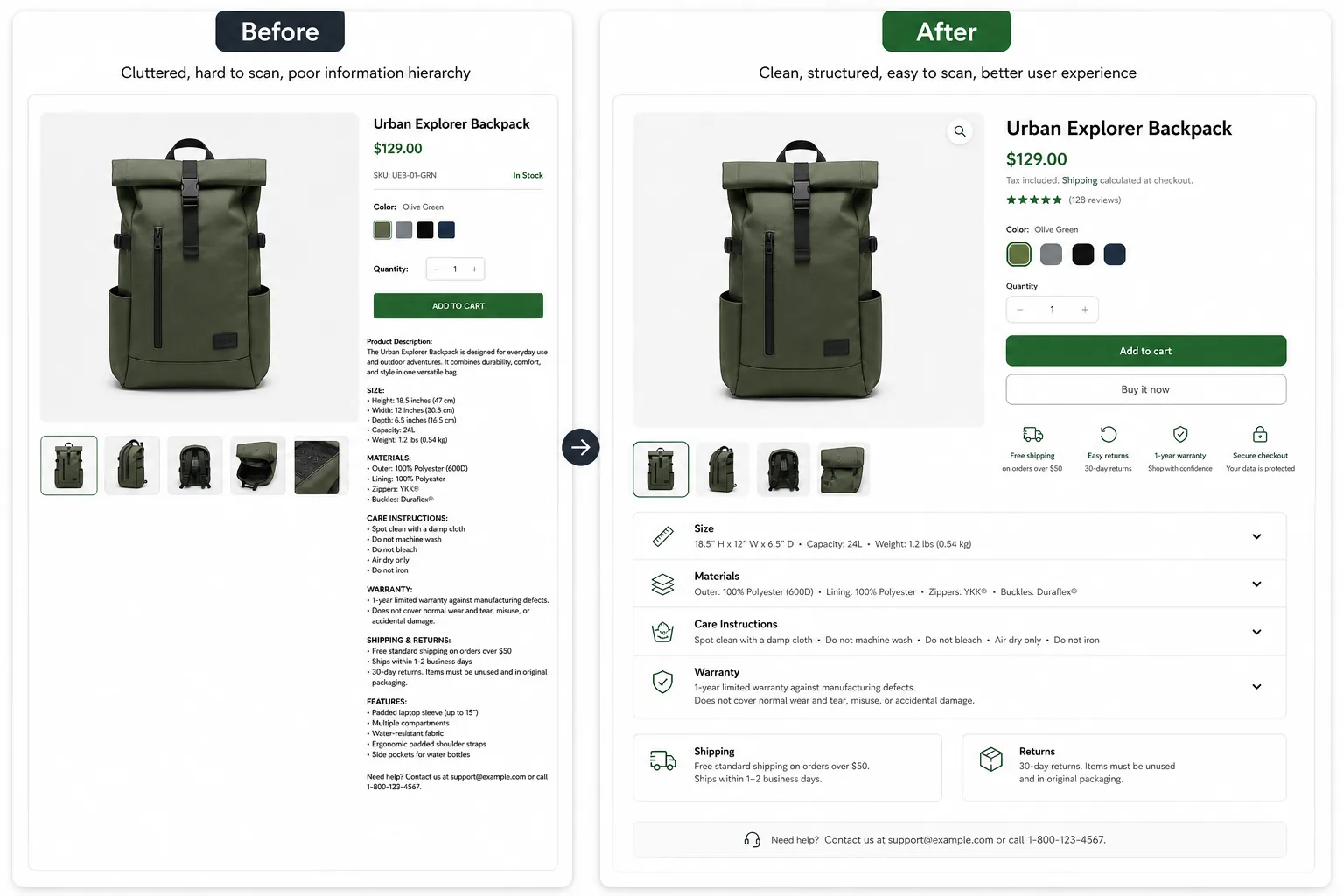
Make pages easier to scan
Dedicated sections help shoppers find dimensions, care, or warranty details before buying.
Keep catalog data consistent
Define a field once and reuse it instead of rewriting the same detail across product descriptions.
Support flexible storefronts
Structured values can power dynamic theme sections, filters, app logic, and operational workflows.
Improve SEO indirectly
Clear, useful product information supports the broader on-page work in our Shopify SEO Guide.
How to Create and Use Shopify Meta Fields
Start with one repeatable piece of information and give it a clear home. This four-step workflow keeps your data useful without making the admin or storefront harder to manage.
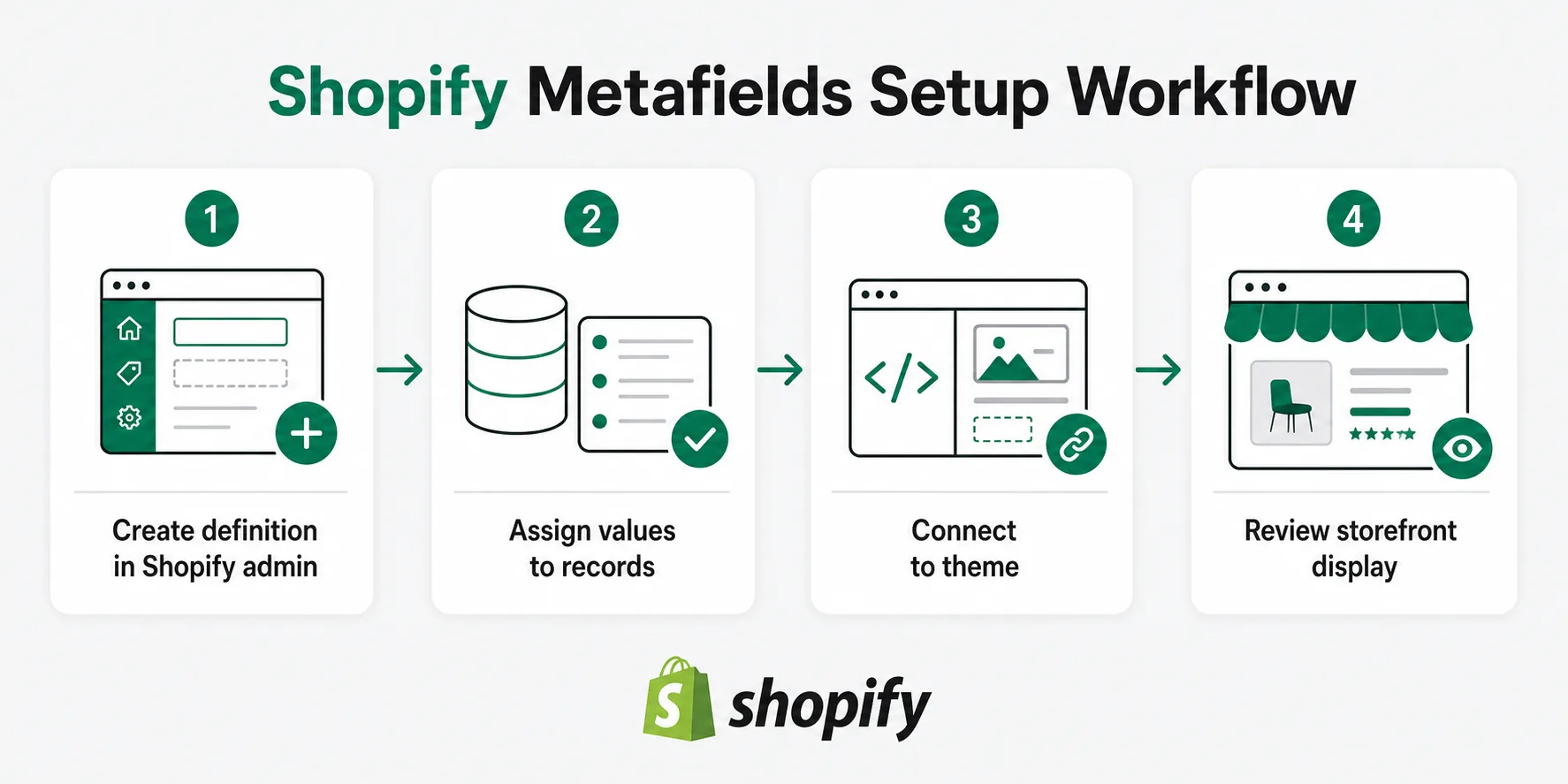
- 1
Create a definition
In Shopify Admin, choose the resource, such as a product, customer, or order. Set a clear name, stable namespace and key, and the right content type.
- 2
Add values
Populate the records that need the field. Keep each value focused: a dimensions field should not become a marketing paragraph.
- 3
Connect the field to your store
If your theme supports dynamic sources, connect the field in the theme editor. Otherwise, a developer may expose it in theme code or app logic.
- 4
Review the storefront output
Check the field on desktop, tablet, and mobile. It should improve the page structure, not make it more crowded.
For official implementation details, see the Shopify Help Center guide to metafields and Shopify Developers’ metafields documentation.
Practical Shopify Meta Field Examples
Product meta fields
Care instructions, materials, size chart links, dimensions, warranty details, and compatibility notes. Pair these with our Shopify Product Description Template so the description can focus on benefits.
Order meta fields
Gift-wrap preferences, fulfillment notes, handling instructions, or wholesale processing details can help internal teams work consistently.
Customer meta fields
Loyalty tier information, preference tags, B2B segmentation notes, or onboarding status can support careful personalization.
Collection data
Collection-level custom data can support reusable buying notes, merchandising rules, or category-specific information as your catalog grows.
Best Practices and Common Mistakes
- ✓Use clear names such as custom.care_instructions.
- ✓Choose the right data type from the start.
- ✓Use meta fields for structured, repeatable information—not everything.
- ✓Match customer-facing fields to user intent.
- ✓Review fields regularly for empty or duplicated data.
- ✓Consider metaobjects when related fields need a reusable group.
Avoid creating too many fields too early, using vague names, burying structured details in descriptions, or forgetting to display fields clearly on the storefront. A field only adds value when shoppers or teams can use it effectively.
Frequently Asked Questions
What is the difference between Shopify meta fields and metaobjects?+
Meta fields store individual custom fields on a resource. Metaobjects are better when you need reusable objects made up of multiple related fields.
Are Shopify meta fields good for SEO?+
They can help indirectly by making product information cleaner and easier to structure on the page. They work best alongside strong copy and sound technical SEO.
Can I use Shopify meta fields without coding?+
Often, yes. Many modern themes support dynamic sources in the theme editor. More advanced use cases may still need developer help.
Which Shopify resources can use meta fields?+
Common examples include products, variants, collections, customers, and orders.
What should I store in product meta fields?+
Store structured details that help shoppers buy with confidence, such as materials, dimensions, care instructions, ingredients, compatibility, or warranty information.
Make your product data work harder
Organize the details customers ask for repeatedly, then create product copy that turns that structure into confident purchases.
Start with the Product Description GeneratorKeep exploring
Shopify SEO Guide →
Build a stronger search foundation for your store.
Product Description Template →
Turn structured product details into conversion-ready copy.
Product Description Generator →
Create polished descriptions faster with Image Chat.
AI Product Descriptions Guide →
Learn how AI can support your ecommerce content workflow.